
Browse docs ▾
Start here
Getting started
SubnetSlinger runs on your machine. The free tier — nine tools — needs no account, and your scans and findings stay on your computer. The only things that leave are the lookups you run yourself — DNS, WHOIS, MAC vendor, public IP, speed test — each to a named service listed on the Privacy page. Here's the whole path from install to your first result, going Pro, and keeping your work safe.
Install it
SubnetSlinger runs on Windows, macOS, and Linux on the desktop (one purchase covers all three), plus a free Android companion on Google Play (iPhone and iPad are in App Store review). Windows installs from the Microsoft Store; macOS and Linux are verifiable direct downloads on the Download page. The nine-tool free tier needs no sign-up. See the changelog for what's new.
System requirements — Windows 10 (1809+) or 11, 64-bit; 64-bit x86-64 Linux with glibc 2.27+ (for example Ubuntu 22.04/24.04, Debian 12/13, Fedora 40+); or macOS 14 Sonoma or later. The app bundles its own runtime — nothing else to install. Minimum: any 64-bit dual-core, 8 GB RAM, ~500 MB disk. Recommended: quad-core, 16 GB, SSD — and 32 GB plus a GPU to run the AI locally with Ollama (cloud AI needs neither). The Linux download includes a README; for every OS, Setup & requirements covers the optional add-ons (Npcap/libpcap, OpenSSH, iperf3, Ollama) and which need administrator rights.
First launch — the Home dashboard
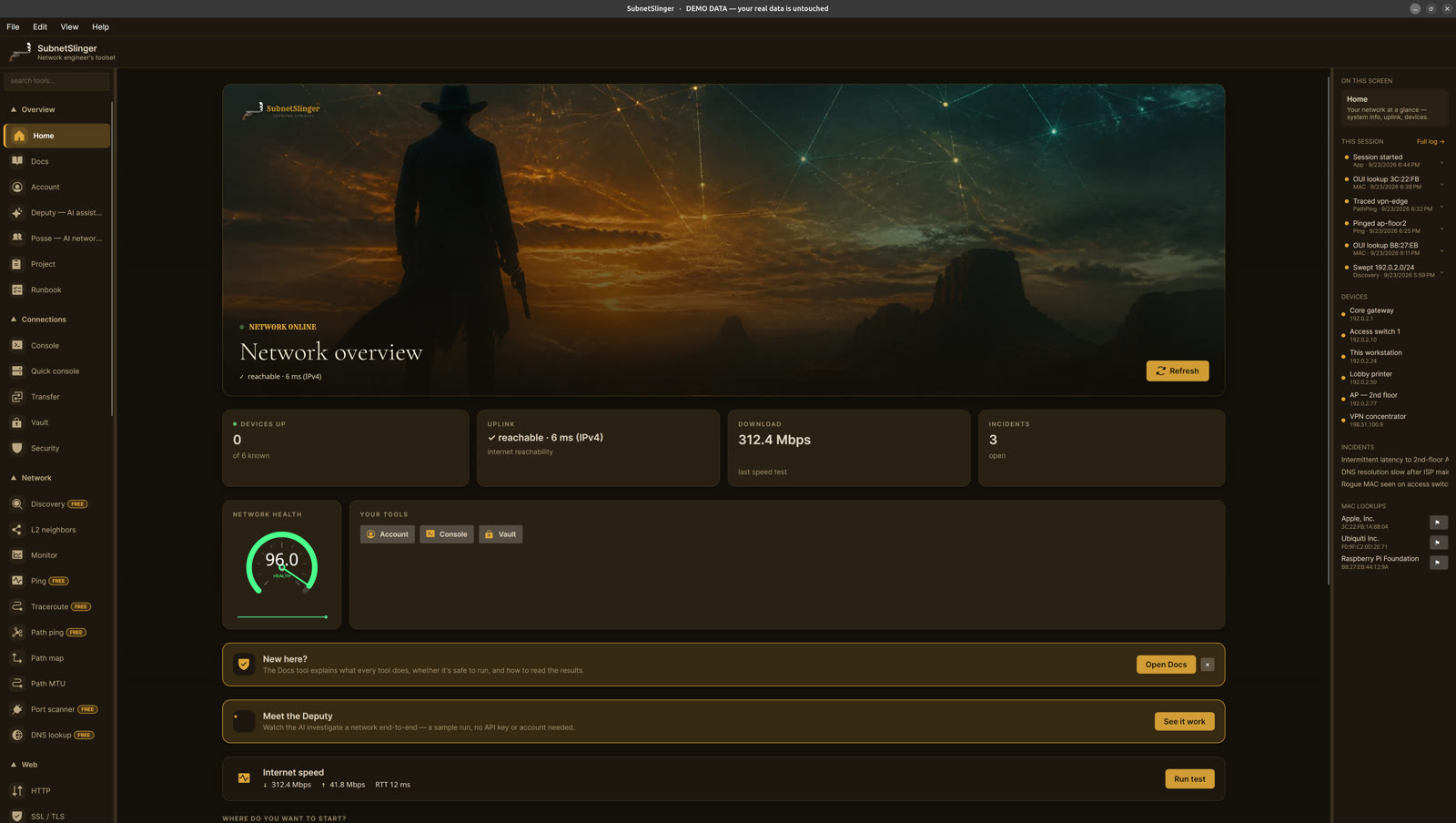
Home shows your machine's network at a glance: hostname, local IPs, gateway, DNS servers, and a live uplink check. The public-IP panel is click-to-load — nothing leaves your machine until you press it. The left rail lists every tool; the search box filters by name (try ping, mac, cert).
Run your first check — Ping
Open Ping. It opens pre-filled with your default gateway — "is my gateway up?" is the usual first check, and it answers even on an isolated lab network with no internet. Press Enter (or the Run button). Type any host or IP over it to test something else.
Read the result
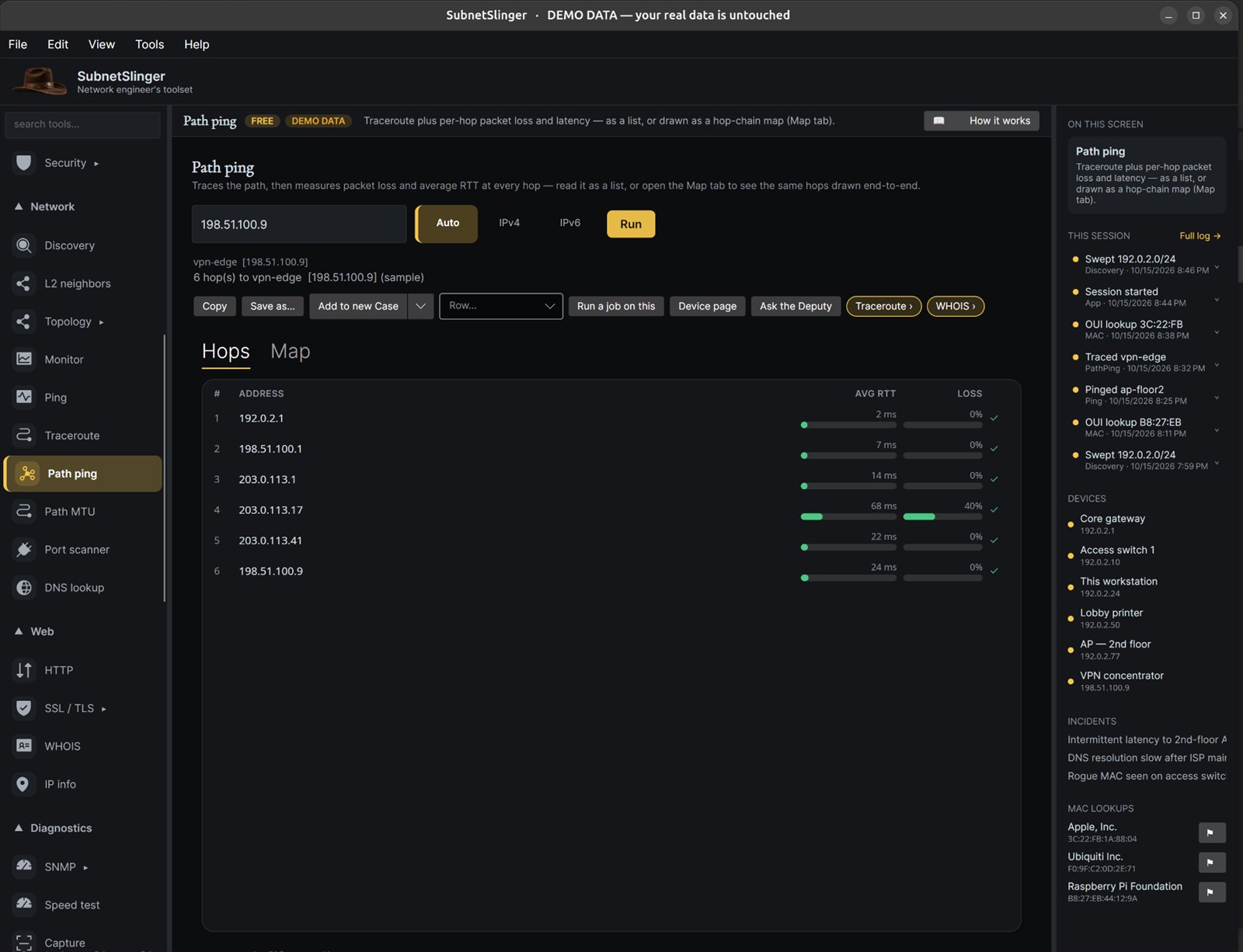
Color and icon mean the same thing everywhere, and there's always a label so you never rely on color alone: green / ✓ = good, amber / ⚠ = degraded, red / ✕ = failed. Low, steady RTT is healthy; 100% loss means down, unreachable, or filtering ICMP. See Reading results for the full rundown.
Explore the free tools
Nine tools are free forever: Ping, Trace, Path ping, Ports, DNS, Subnet calculator, ARP table, MAC / OUI lookup, and Discovery. Most are passive and safe to run anywhere — read Can these tools cause harm? before you scan or SSH to gear you don't own.
Go Pro (optional)
Pro unlocks the whole corral — packet capture, topology, drift, the AI Deputy and Posse, and more. Start a 30-day trial or buy ($499, once) from inside the app. You sign in with your email; we send a one-time code (not a password). We hold your email, a random account ID, your tier and trial start, and — if you buy — a purchase record (amount, currency, date, billing country, never your card); see Privacy. Buying opens Stripe in your browser — no card field lives in the app. Full detail: Your account, your license, and your data.
Back up your work
Your data lives on your machine and only there — there's no cloud sync. Use Back up & restore (File menu) to save your inventory, incidents, runbooks, saved maps, watch lists, projects, custom themes, saved hosts, SSH quick commands, MCP server setups and the activity log to one file you can move to a new machine. See Back up & restore your work.
Troubleshooting
The questions we hear most on a first run. We'll grow this as more come in.
- A public site (like google.com) times out, but my local IPs reply.
- That usually means the network has no internet uplink yet — not a broken ping. Local replies with a public host timing out is the tell. Also, some networks filter ICMP to public IPv4 (e.g. 8.8.8.8) even when the internet works — try a name, or flip the IPv4/IPv6 toggle.
- My sign-in email has a code, not a link — and I can't find it.
- That's expected: we email a 6-digit one-time code, not a magic link, so there's no password of yours to reuse. Check spam/junk; the code is time-limited, so request a fresh one if it expired.
- A port scan is slow or shows everything filtered.
- A host firewall silently dropping probes looks like 'filtered' and slows the scan. Scan gear you own and expect to reach. Scanning hosts or networks you don't own or aren't authorized to test can violate policy or law.
- The AI Deputy / Posse won't respond.
- AI is optional: nothing is sent to an AI until you set it up and ask. Either pick a local model via Ollama (your questions and answers never leave your machine), or choose a cloud provider (Anthropic, OpenAI-compatible or Gemini) and supply your own key. No key (or no Ollama running) means no AI answer. See the Deputy and Ollama articles.
- I copied vault.json to a new machine and it won't open.
- That's deliberate. On Windows the passphrase is bound to this device by default (you can turn that off), so a copied vault won't open elsewhere with the passphrase — only with the recovery code you were shown at setup, which is never device-bound. Keep that code safe. On macOS the secrets live in the Mac's data-protection Keychain on this device only — they don't move with Backup export, Time Machine or Migration Assistant, so re-enter them on the new Mac. On Linux it's a passphrase-protected file you can move yourself; your passphrase (or recovery code) unlocks it. Otherwise, set your secrets up again on the new machine.
- I signed in on a new computer and my data is gone.
- Your license follows your account; your data does not — the account never held it. Bring your work across with Back up & restore (step 7). Sign in and Pro turns back on; import your backup to restore your inventory, maps, and the rest.